Restarting Windows PCs – Why it is Essential to be Timely & Why it Works
- Mike Barnett
- Mar 24, 2021
- 2 min read

Updated: Apr 13, 2021
Restarting Windows PCs is an essential part of maintaining up-to-date functionality and security on a modern Windows PC. This simple task frees up memory and pending processes from ongoing updates to enable better operation and a better experience on a daily basis.
Please be aware that once updates begin to backlog on any Windows PC (for days or weeks) without a restart, performance will be impacted and problems will begin to occur including (but not limited to):
1) Not able to print
2) Printing not aligned
3) USB device not working (webcam, keyboard, mouse, microphone, local printer)
4) Unable to find the S\: drive.
5) MMSI not opening
6) Monitor not found (sudden black screen)
7) Mouse not responding smoothly
8) Delay after typing
9) Outlook freezing
10) Zoom is choppy
11) VPN not connecting (if remotely located)
Depending upon personal usage a daily restart is recommended for many staff members and is always the first troubleshooting step.
Why: Deferring these reboots is the root cause of many cases of lost computer functionality, longer reboot processes, lost staff time, unplanned interruptions, and data security threats in many cases. Rebooting will not harm a computer, but rather frees up resources and applies necessary code that evolves over time for the PC to run most quickly and efficiently.
Process: When Windows Updates are needed, Windows will automatically download them and ask to reboot your PC to apply these updates. Until each major patch is applied, and the system is rebooted, the patches wait and consume resources while waiting. With continued deferrals, eventually errors will be generated until a reboot is completed. IT will not be able to assist until the reboot is done.
Consequences of Delaying a Reboot - In the event the patches stack up without a reboot over several weeks, the time to reboot is extended and often requiring several reboots to catch up fully. The total time becomes substantially more than simply allowing each patch to be applied in a timely manner. Odd errors for programs and functions begin to occur as well.
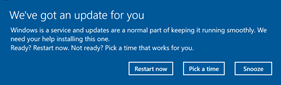
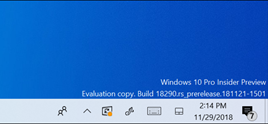
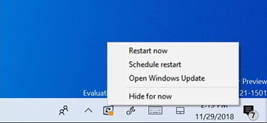
Please note: If you see the below indicators at any time, your PC should be rebooted at the earliest opportunity, when work will not be lost, and customer service will not be interrupted.
If you experience issue with printing, file access, VPN, MMSI or any standard activity and see these indicators please reboot your computer and allow up to 5 minutes for services to restart after entering your password prior to contacting IT support for assistance.
Notification:


Comments